Members & Groups
There are two project groups in SyRF:
Reviewers
Reviewers can:
- screen studies for inclusion
- annotate studies
Administrators (admin)
In addition to the abilities that Reviewers have, Administrators can also:
- edit project settings
- approve or reject join requests
- invite other to become project members
- upload studies
- edit annotation questions
- export data
These roles are project specific - you may be a Administrator in some of your projects and a Reviewer in others.
You will automatically be assigned a Administrator role in any project that you create.
What only the project owner can do
Three abilities are owner-only: transferring ownership of the project, assigning permissions, and deleting the project. SyRF refuses to store a grant of any of them to a group (the Administrator group included) or to all members, so being an Administrator does not make someone able to do any of these. As of 3 October 2026 no project holds such a grant.
Assigning User Groups
Only Project Administrators can change a user’s group. There is a list of project members under Project Settings > Membership, where Project Administrators can change project members groups.
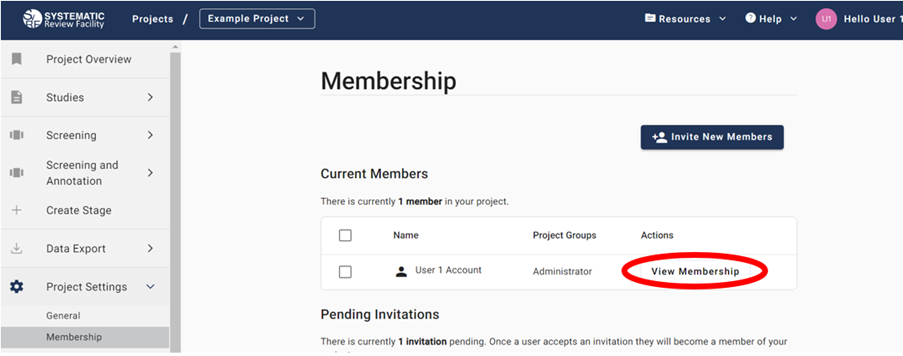
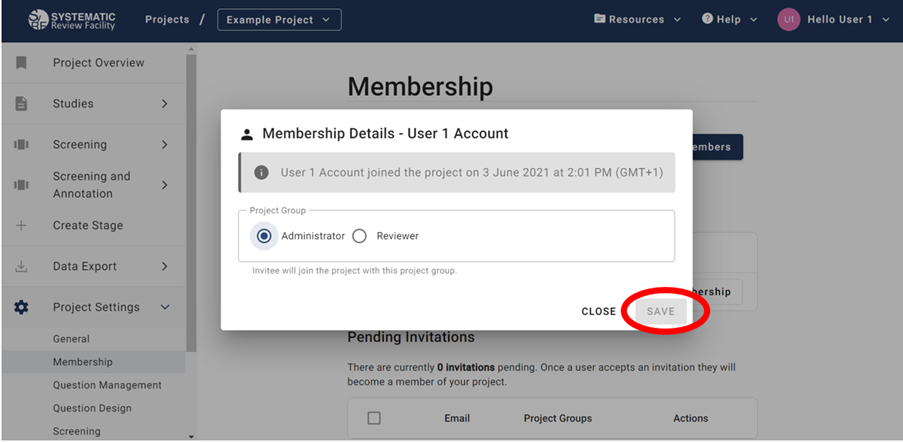
Under Project Settings > Membership > Current Members click ‘View Membership’ and you can assign the Project Group (Administrator or Reviewer).
Once you have assigned a role click Save.
If you are assigned a Reviewer role and think you should be a Administrator instead, please contact an Administrator on the project to request the change.
Updating Member Project Groups
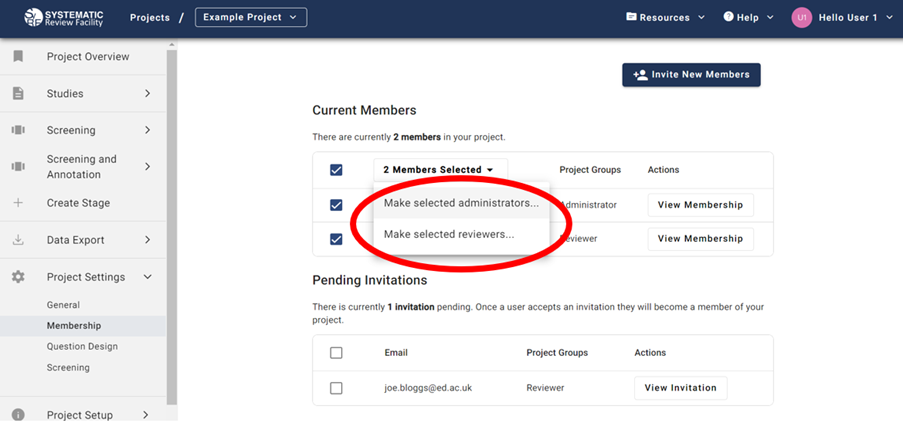
It is possible for an administrator to change the roles of multiple users at the same time. Go to Project settings > Membership and in the Current Members table select the users that you want to change the roles of. Select these members by ticking the select box on the left hand side of the members’ name. A drop down list will then be visible where you can make all selected members administrators or reviewers.
Administrators are able to view project members (Project Settings > Membership > Current Members). The project owner is highlighted in bold and has the label (project owner) after their user name.
Disabling and Re-enabling a Membership
Sometimes a member should stop working on a project without their contribution being erased. Rather than removing them, an Administrator can disable their membership under Project Settings > Membership > Current Members.
A disabled member immediately loses access to the project, but their membership, groups and past review work are all retained, and every disable and re-enable is recorded with who made the change and when. An Administrator can re-enable the membership at any time to restore access.
Disabling is not only a loss of access for the member: a stage’s proportional workload allocation treats “active member” as its premise, so disabling a member who is configured in one stops that stage handing out new annotation work until the allocation is changed or the member is re-enabled.
You cannot disable the project owner, your own membership, or another Administrator. To disable an Administrator, first change them to a Reviewer; to disable the owner, transfer ownership first.
Changing Your Role as Project Owner
As project owner, it is possible to change your own role to Reviewer and you will retain your role as project owner. As project owner, it is possible to change your role back to Administrator.
Changing the Project Owner
Only the project owner can assign another project member as project owner. Other Administrators cannot: the setting is not shown to them, and SyRF refuses the change if it is requested anyway, leaving the project exactly as it was.
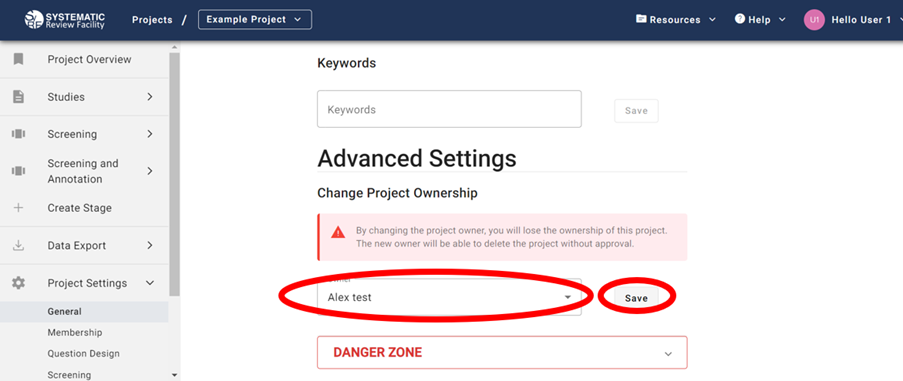
If you are the owner, go to Project Settings and scroll down to Advanced settings. You also need to be in the Administrator group to open the project settings, so if you changed your own role to Reviewer, change it back to Administrator first. By changing the project owner, you will lose the ownership of the project. The new owner will be able to delete the project without approval. Select the new owner from the drop down list and click save. The new owner must be an active member of the project: someone who never joined, was removed, or whose membership is disabled cannot be chosen, and SyRF refuses the change if they are named anyway.